

Delivery Limit
Do Not Disturb (DND)
Do Not Disturb (DND) allows you to configure idle hours at which time notifications should not be sent to users.
You can now configure your Do Not Disturb settings for all channels from the following navigation: Workspace Settings (bottom left corner in menu) -> Delivery Limit -> Do not disturb
Why DND?
Engaging your users with notifications is one of the most effective ways to drive increased adoption, retention and conversions. However, there are instances when you’d prefer your notifications not to reach them at inconvenient times, such as 3:00 am when your users are sound asleep..
How it works?
You now have the option to configure “Do Not Disturb” (DND) hours for both transactional and marketing communications. Currently, this feature is applicable to SMS, WhatsApp, Email, Push, RCS and Voice channels.
When DND is active, Fyno will not trigger notification during the specified hours. You have the flexibility to decide whether to drop (discard) notifications that were triggered during the DND period or queue their delivery until after the DND window. Queued messages will be sent at the end of DND period with 30 seconds additional delay.
Select a channel from the list on the left to configure it. Marketing and Transactional are configured independently, each with its own toggle in the Notification Event Type column, so you can enable DND for one without enabling it for the other.
For example, if you want to set DND time for Marketing notifications from 8 PM till 10 AM for SMS and send notifications after the DND window, follow these steps.
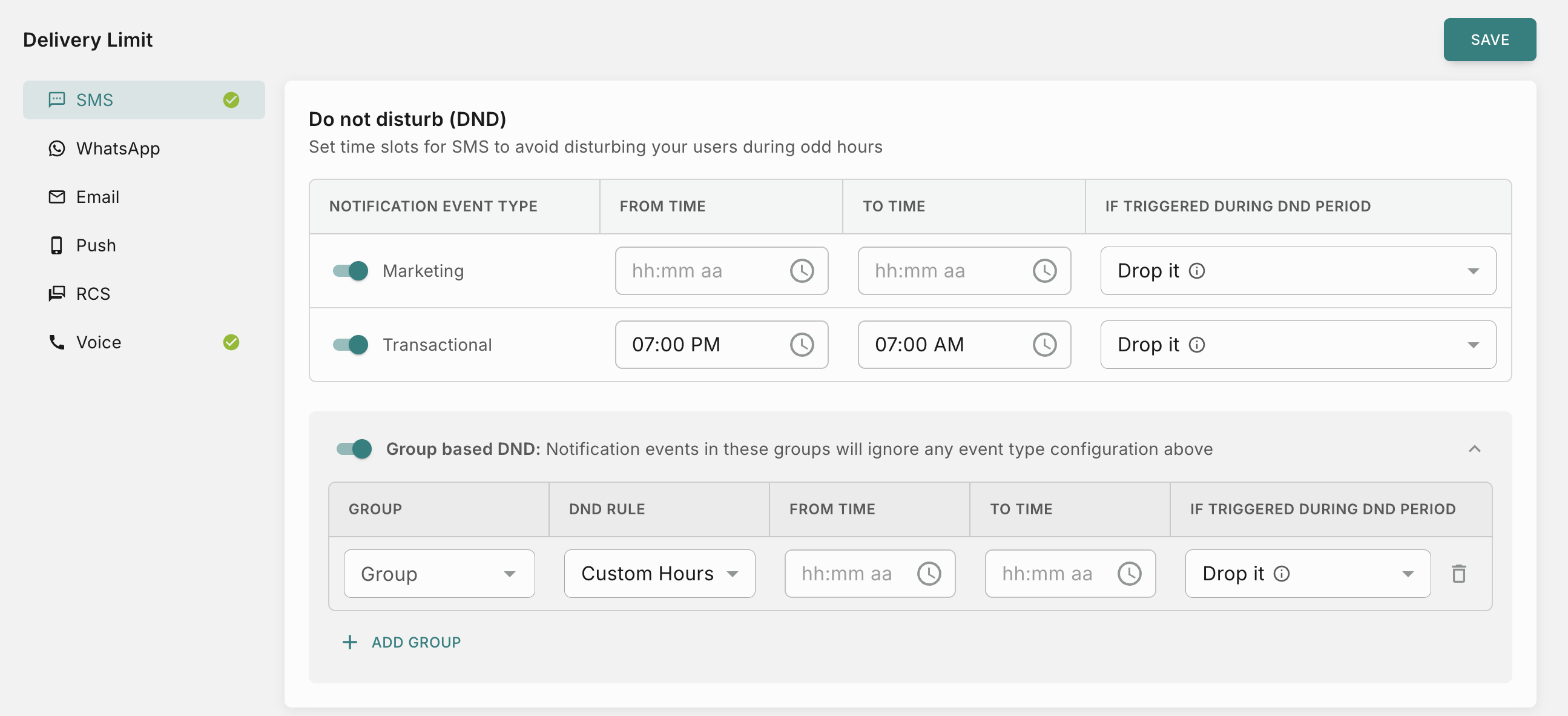
If you want to add DND settings for Transactional notification also for SMS, turn on the toggle next to Transactional and set its own From Time, To Time and behaviour.
Group-based DND
The DND settings above apply to every notification event on a channel, separated only by notification type. Group-based DND lets you override that behaviour for a specific set of notification events.
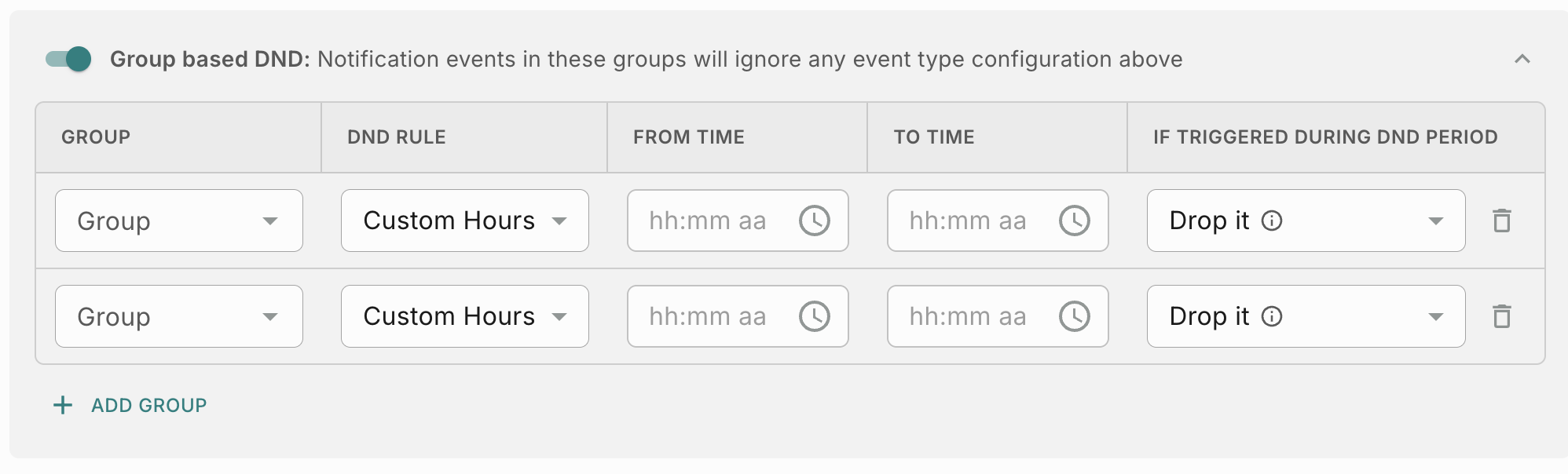
The Group based DND panel sits directly below the notification event type table for the selected channel. Turning on the toggle reveals a table where you add one rule per group. As the panel itself states, notification events in these groups will ignore any event type configuration above.
Groups are managed from Workspace Settings -> Groups. When you attach a DND rule to a group, every notification event in that group follows the group’s rule instead of the Marketing or Transactional configuration above.
This covers two common requirements:
- Custom Hours - a shorter or shifted DND window for a set of events. For example, your workspace SMS DND runs from 12 AM to 6 AM, but events in a Critical Notifications group are allowed to send until 1 AM.
- Skip DND - events that should never be held back. For example, events in an Emergency Notifications group are delivered at any hour, regardless of the workspace DND window.
For example, if you want events in the Critical Notifications group to follow a DND window of 1 AM till 6 AM for SMS instead of the workspace window, follow these steps.
If you want to add a rule for another group on the same channel, you can do it by clicking the ’+ Add Group’ button.
The DND Rule drop down defaults to Custom Hours. To exempt a group from DND entirely, select Skip DND.
The following fields are available for each group.
Which DND applies?
For a given channel, Fyno resolves DND in the following order.
Notifications set to Queue it are sent at the end of the group’s DND window with 30 seconds additional delay, the same as the workspace-level configuration.
Removing a group’s DND configuration
Removing a DND configuration does not delete the group and does not change the notification events assigned to it. Notification events in that group fall back to the workspace-level Marketing or Transactional DND configured for the channel.
If you want to stop applying group rules on a channel without removing each row, turn off the Group based DND toggle.
Marketing Frequency Capping
You can now configure your Marketing Frequency Capping for all channels from the following navigation: Workspace Settings(bottom left corner in menu) -> Delivery Limit -> Marketing Frequency Capping

Why Frequency Capping?
When multiple campaigns are created, some users may fall into multiple segments/cohorts and thus receive more than one notification in a day. Frequency Capping allows limits to be placed on the number of notifications users will receive during a particular period from a particular channel (Push/Email/SMS/WhatsApp).
How it works?
You now have the option to configure Frequency Capping for marketing communications. Currently, this feature is applicable to SMS, WhatsApp, Email, and Push channels.
For example, if you want to set Frequency Capping as “10 Notifications per destination per day for SMS” , follow these steps.
11th notification sent to the same destination on the same day will be dropped and won’t be sent to the user.