
Go Live
From the Go Live page, you can move your Templates, Routes, Notification Events, Workflows and Components from their Test version to Live.
What you can take Live
Everything you have saved but not yet taken Live is listed on this page, grouped by feature into tabs. The number next to a tab name shows how many items in that tab are waiting to go Live.
What each column shows
How to take items Live
Select the items
Select the checkbox next to one or more items. To select every item in the tab at once, use the checkbox in the header row.
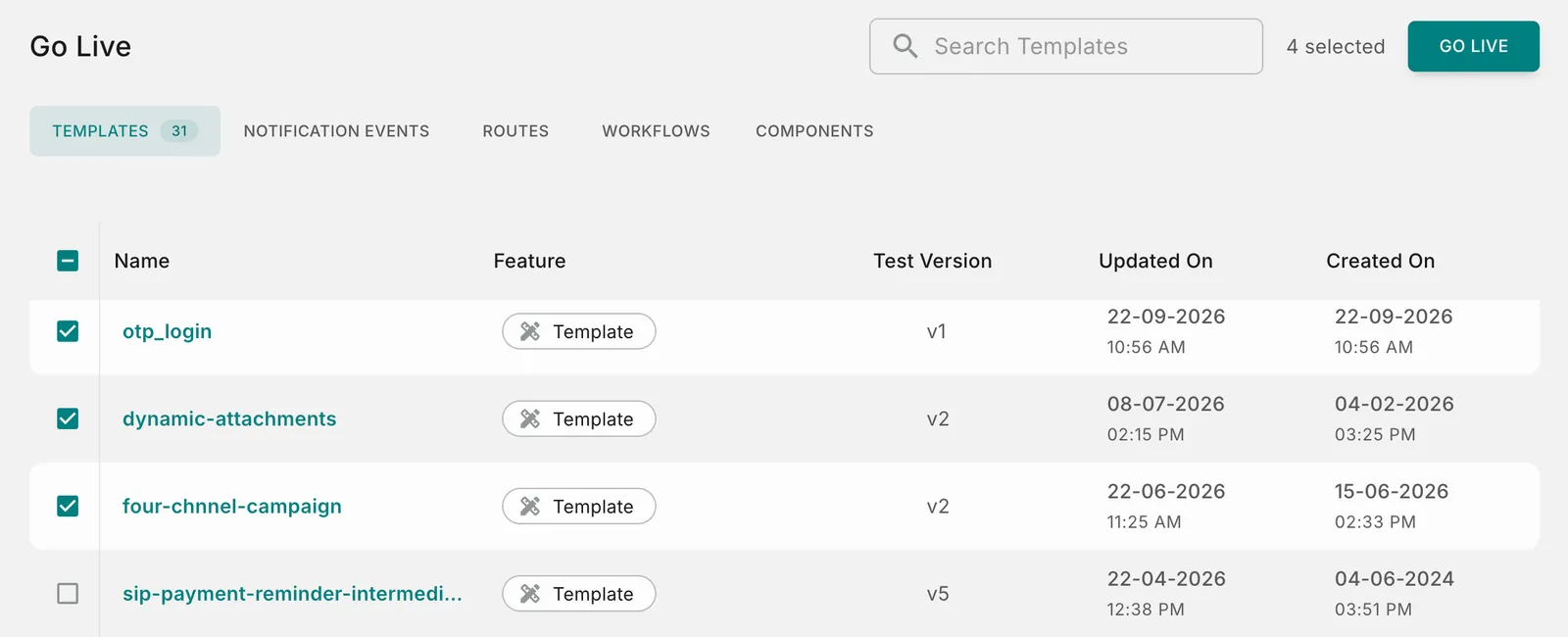
To find a specific item quickly, type its name in the search box at the top of the page.
Click GO LIVE
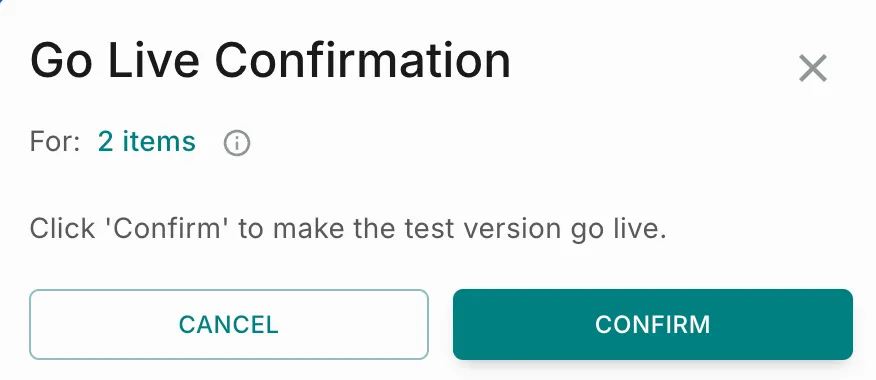
Click GO LIVE, then click CONFIRM in the Go Live Confirmation dialog. The test versions of the selected items go Live.
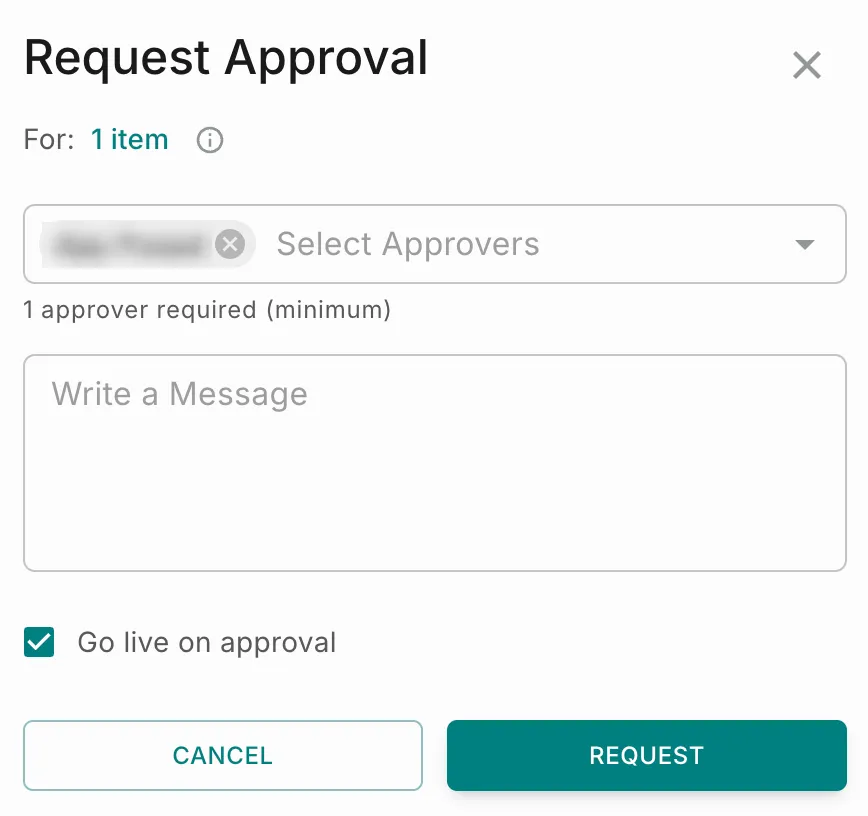
If Approval Request is turned on, clicking GO LIVE opens the Request Approval dialog instead. Select your approvers, add an optional message and click REQUEST. See Approval Request.